On selecting any Aztec, Properties window includes following tabs:
General Settings tab includes following options:
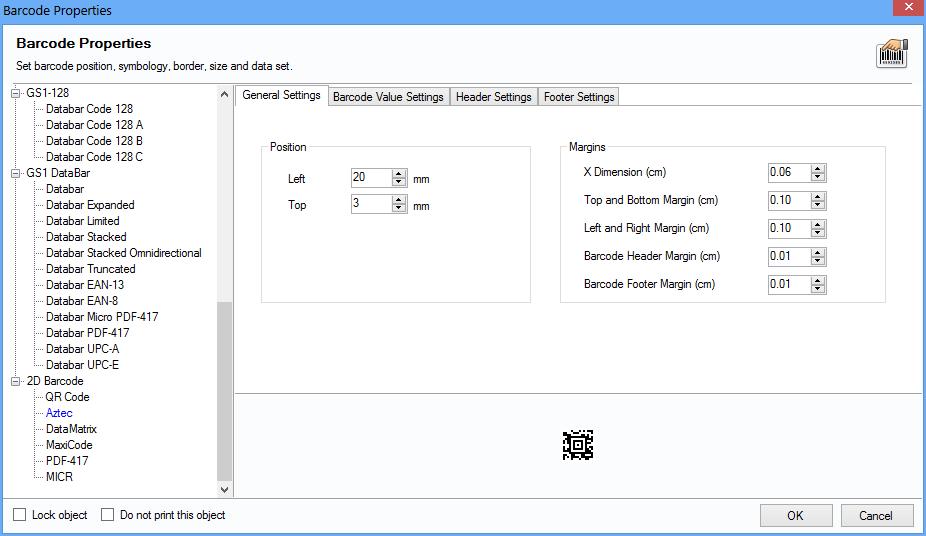
•Left and Top position – Set Left and Top positions to place barcode in the label.
•X Dimension (cm) – Set the X Dimension Value.
•Top and Bottom Margin (cm) – Set the Top and Bottom Margin.
•Left and Right Margin (cm) – Set the Left and Right Margin.
•Barcode Header Margin (cm) – Set the Barcode Header Margin.
•Barcode Footer Margin (cm) – Set the Barcode Footer Margin.
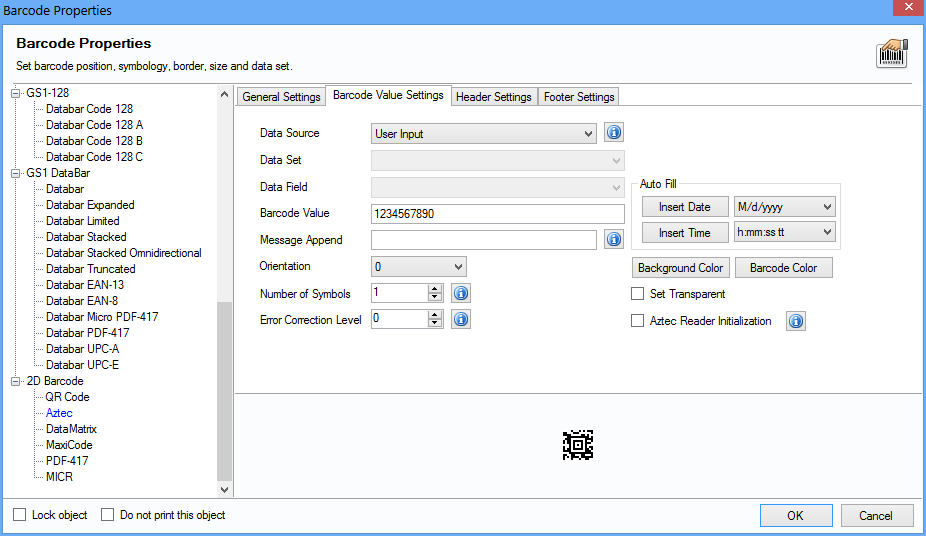
Barcode Value Settings tab includes following options:
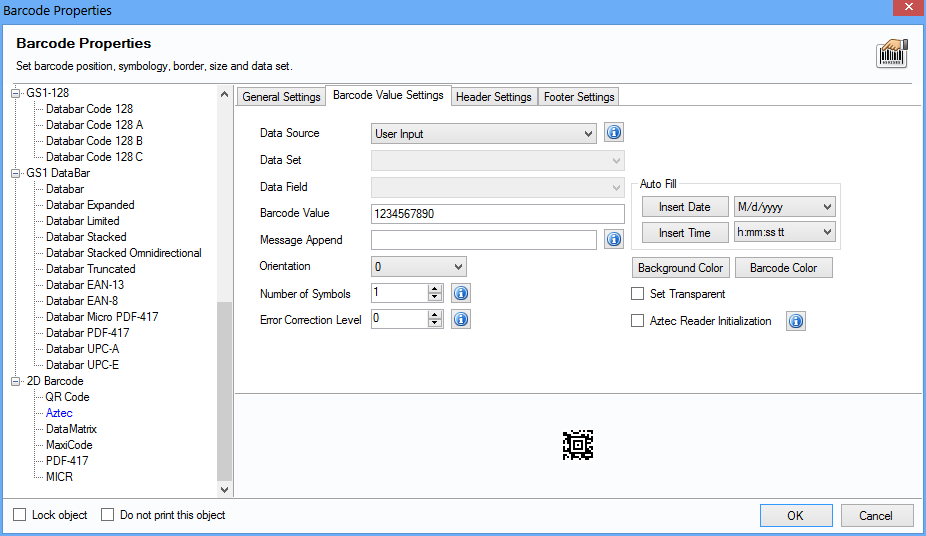
•Barcode Value – Enter the Barcode Value.
•Message Append – Specify the message appended across multiple symbols if Number of Symbols is greater than 1.
•Aztec Reader Initialization – Select if reader initialization symbol requires.
•Number of Symbols – Select number of symbols.
•Error Correction Level – Select Error correction Level Value.
•Orientation – Rotate the barcode image in 0, 90, 180, 270 degrees.
•Barcode Bar Color – Set the Barcode Color.
•Barcode Background Color – Set the Barcode Background Color.
Header Settings tab includes following options:
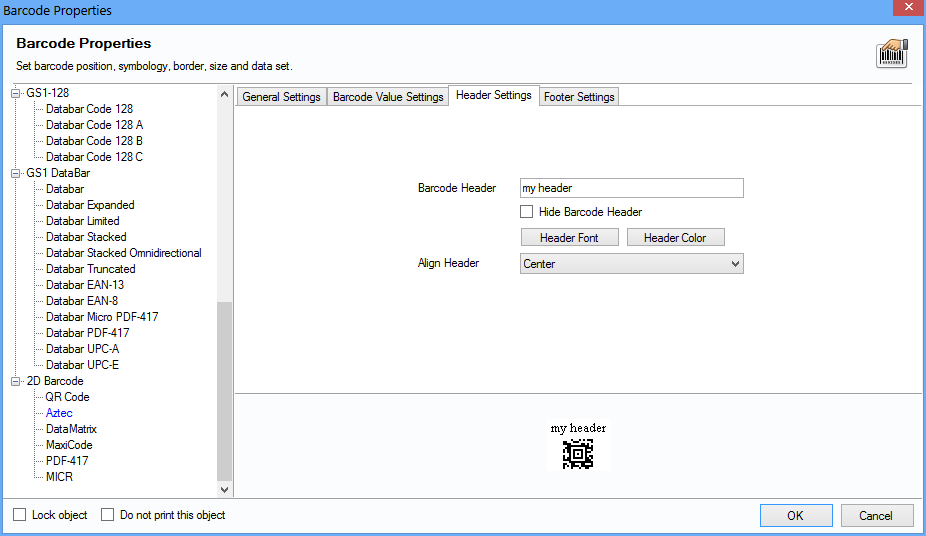
•Barcode Header – Enter the Barcode Header details.
•Barcode Header Font – Set the Barcode Header Font.
•Align Header – Set the alignment of Barcode Header ("Left, Center or Right").
•Hide Barcode Header – Select to Hide Barcode Header.
•Barcode Header Color – Set the Barcode Header Color.
Footer Settings tab includes following options:
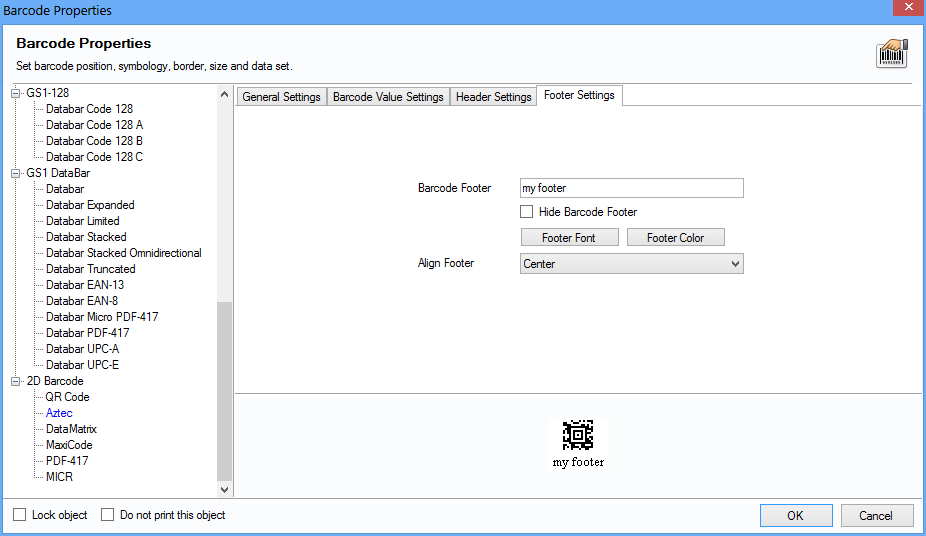
•Barcode Footer – Enter the Barcode Footer details.
•Barcode Footer Font – Set the Barcode Footer Font.
•Align Header and Align Footer – Set the alignment of Barcode Header and Barcode Footer ("Left, Center or Right").
•Hide Barcode Footer – Select to Hide Barcode Footer.
•Barcode Footer Color – Set the Barcode Footer Color.
Lock Object – Select to Lock the Barcode object while designing label. (It gives you option to lock the movement of the Barcode object)
Do not print this object – Select to not print Barcode object while printing designed label.
Click “OK” button to apply the settings.